Microsoft Azure
How to set login to your juno workspace via Microsoft Azure integration.
What is Azure log-in integration
For all clients using Microsoft services (Office 365, Microsoft Teams, Sharepoint etc.) for their business and all these services are accessible via Azure log-in, we are able to incorporate the Microsoft API into juno.one for easier access for your team.
How to set Azure log-in in your juno.one workspace
1. Create Azure
First off, you need to create Azure application in Microsoft. The step-by-step guide on how to do that can be found here.
2. Azure setup
Then you'll need to set the following for the application to work correctly:
- The secret-id: The secret-id can be generated while creating the Azure application - please refer to the previous link for more information.
- The permissions: For the correct permissions set up (User.Read), please refer to this guide.
- The redirect: To set up the redirect, your cloud URL will be
https://prodapi.juno.one/oauth2/{tenantName}, wheretenantNameis the name of your juno.one instance.
3. Juno settings
To set this integration in juno go to
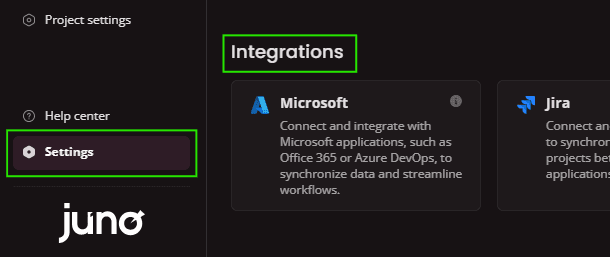
You'll see a set of inputs to fill.

- The complete guide on how to generate AD - App ID,AD - Tenant ID,AD - Secret ID;AD - Secretcan be found on the official Microsoft page.
- After you have generated the required values from above, it is mandatory to Copy/Paste those values into your juno.one Integration settings.
4. Login
Now your Microsoft login is ready! The next time you want to log in:
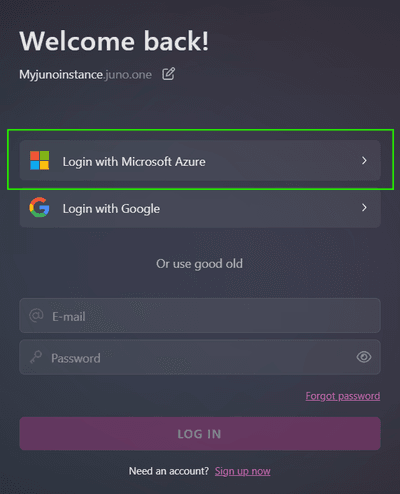
- Go to the url https://mycompany.juno.one/login("mycompany" is the name of your juno.one instance).
- Without the need to fill out your login credentials, just click on Login with Microsoft Azurebutton.
Jira
Jira integration allows you to link multiple juno.one projects to a project in Jira. This allows teams to streamline work and improve collaboration.
Cloud protection
We realise how valuable your data is to you. That is why we pay attention to its safety. It is key for us to ensure the privacy, security and isolation of your data from the data of others.