Settings
Labels
Set your labels used in Projects and Docs.
Labels in general
Labels provide a visual way to add context and organization to your issues and test cases.
Their purpose is to help you:
- Categorizing: Add labels with relevant tags to your issues for easier organization and filtering. (e.g., "blocker," "bug fix," "design review")
- Filtering: Quickly find issues associated with specific labels. Imagine filtering a long to-do list to show only "urgent" tasks.
Project labels
Docs Labels
Create a label
Go to
Global settings
and select Labels
.In labels select a tab of your preferred label (either
Project labels
or Docs labels
).
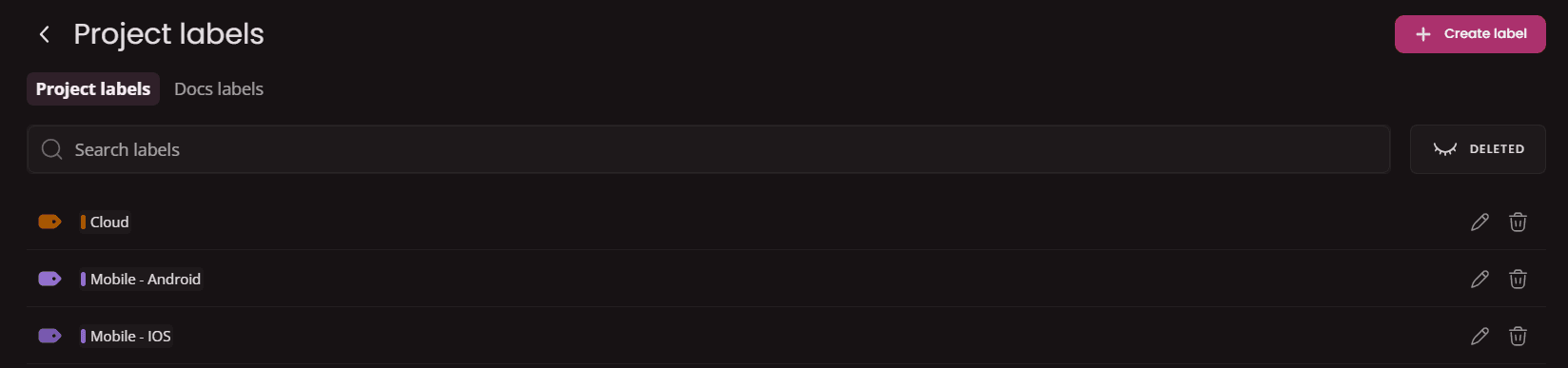
Click on
Create new
button.You'll see a window where you need to fill a label name and choose label color.

Hit
Create
button and your new label will appear in the list of labels.
Edit a label
To edit a label click the
Edit
button at the end of line or simply click on the label you want to edit.

Edit window will open where you can edit name and color. Save the changes by clicking
Edit
button.

Delete a label
To delete a label click the
Delete
button at the end of the line.
Restore a label
You can restore any label you have deleted previously. To restore a label click the
Show deleted
button to see deleted labels.
Select a label you want to restore and click the
Restore
button

Your label will be restored instantly.
Search for a label
You are able to search labels using the
Search input
(use label name in search field).
